How to Swap Variables in Figma in Bulk (The Complete Guide)
Figma Variables are one of the most powerful features in modern design — but migrating them manually across files takes hours. This guide shows you how to use the Design System Migrator plugin to bulk-replace every variable reference across your file in seconds, with intelligent auto-mapping and zero manual effort.
The Problem: Figma Has No Bulk Variable Replacement
Figma introduced Variables as a token-based system for colors, spacing, typography, and more. But when you need to migrate from one variable library to another — updating a token like color/brand/primary to brand/accent/500 across 200 frames — there is no native bulk replace option.
The only built-in path is to right-click each layer, select "Apply variable," and repeat. For files with hundreds of variable-bound layers, this is simply not viable. Designers who hit this wall typically search for:
If any of those searches brought you here — you are in exactly the right place. Here is the proper solution.
When Do You Need to Bulk-Swap Figma Variables?
Moving to a new token library
Your team has adopted a new color or spacing token system and you need every bound layer in every file to point to the new variables instead of the old ones.
Design system rebrand
A brand refresh changes primary, neutral, and accent tokens. Every variable reference across all product files needs to reflect the updated palette instantly.
Token naming convention update
Your team changed the naming convention from flat (e.g. blue-500) to semantic (e.g. color/brand/primary). Every layer still points to the old names.
Merging two design systems
After an acquisition or team merge, two separate design systems need to consolidate. Variables from one need to be remapped to the surviving library.
Adding or switching theming
Migrating from a light-only token system to a full light/dark theme structure requires re-binding every layer to the new semantic variable set.
The Solution: Design System Migrator
The Design System Migrator is a free Figma plugin that adds the bulk variable replacement capability Figma is missing. Its Variable Swap feature lets you:
- checkRegister entire variable collections as the source for migration
- checkBridge source variables to a target file automatically
- checkAuto-map source ↔ target variable pairs by name and value
- checkReplace references across a selection, a page, or the entire document
- checkHandle all variable types: color, number, string, and boolean
- checkUndo the entire operation in a single Cmd+Z step
Watch the Variable Swap in Action
The complete cross-file migration flow — from collection registration to final execution — in under 20 seconds.
Step-by-Step: How to Swap Variables in Figma
Open the Design System Migrator plugin in your source Figma file, then follow these steps.
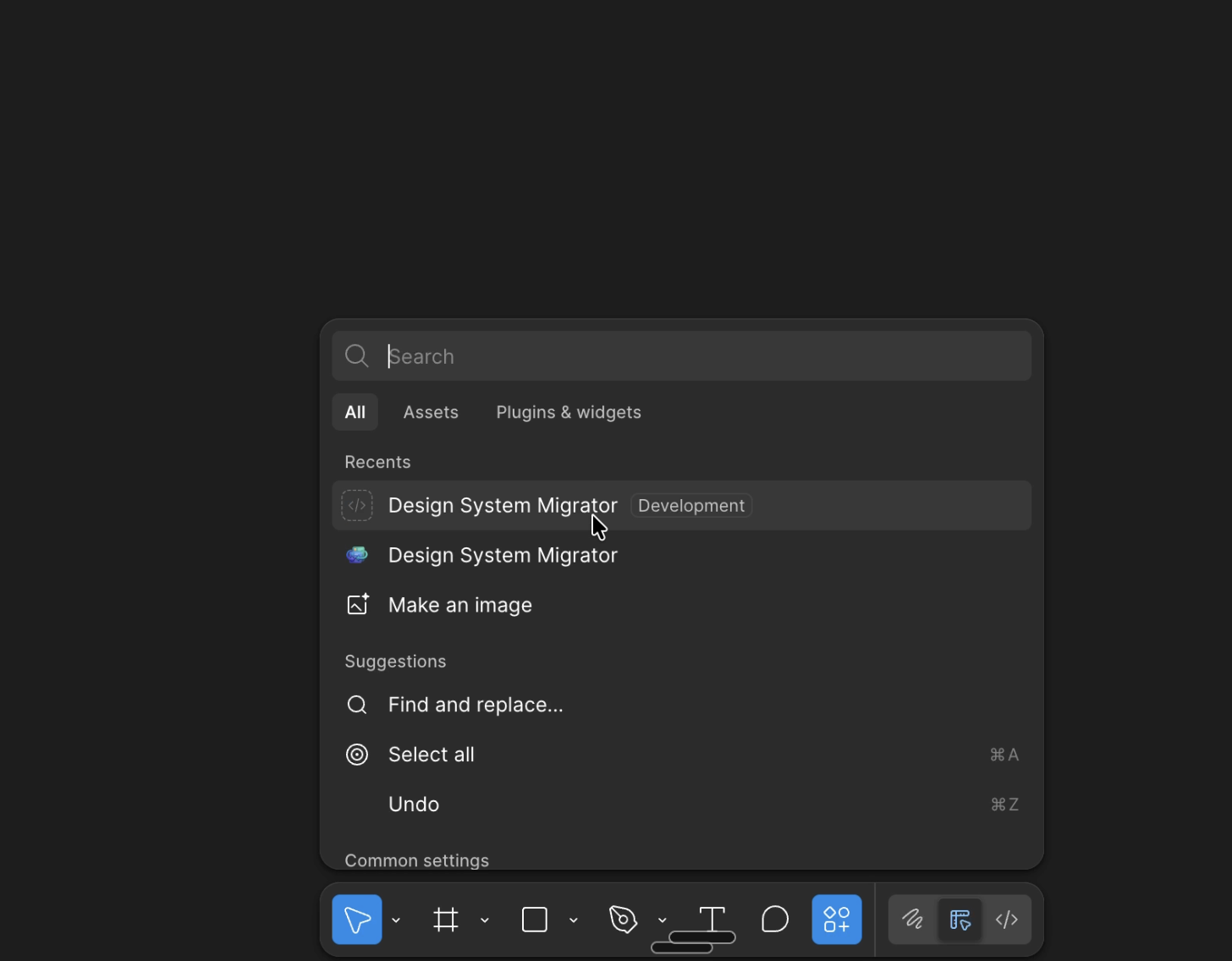
Launch the Plugin in Your Source Library File
Open Figma and navigate to the file that contains your source variable library — the one you want to migrate away from. Run the Design System Migrator plugin (Plugins → Design System Migrator) and click on the "Variables" tab to begin.
Make sure you are inside the correct source file. The plugin reads the variables defined in the file you currently have open.
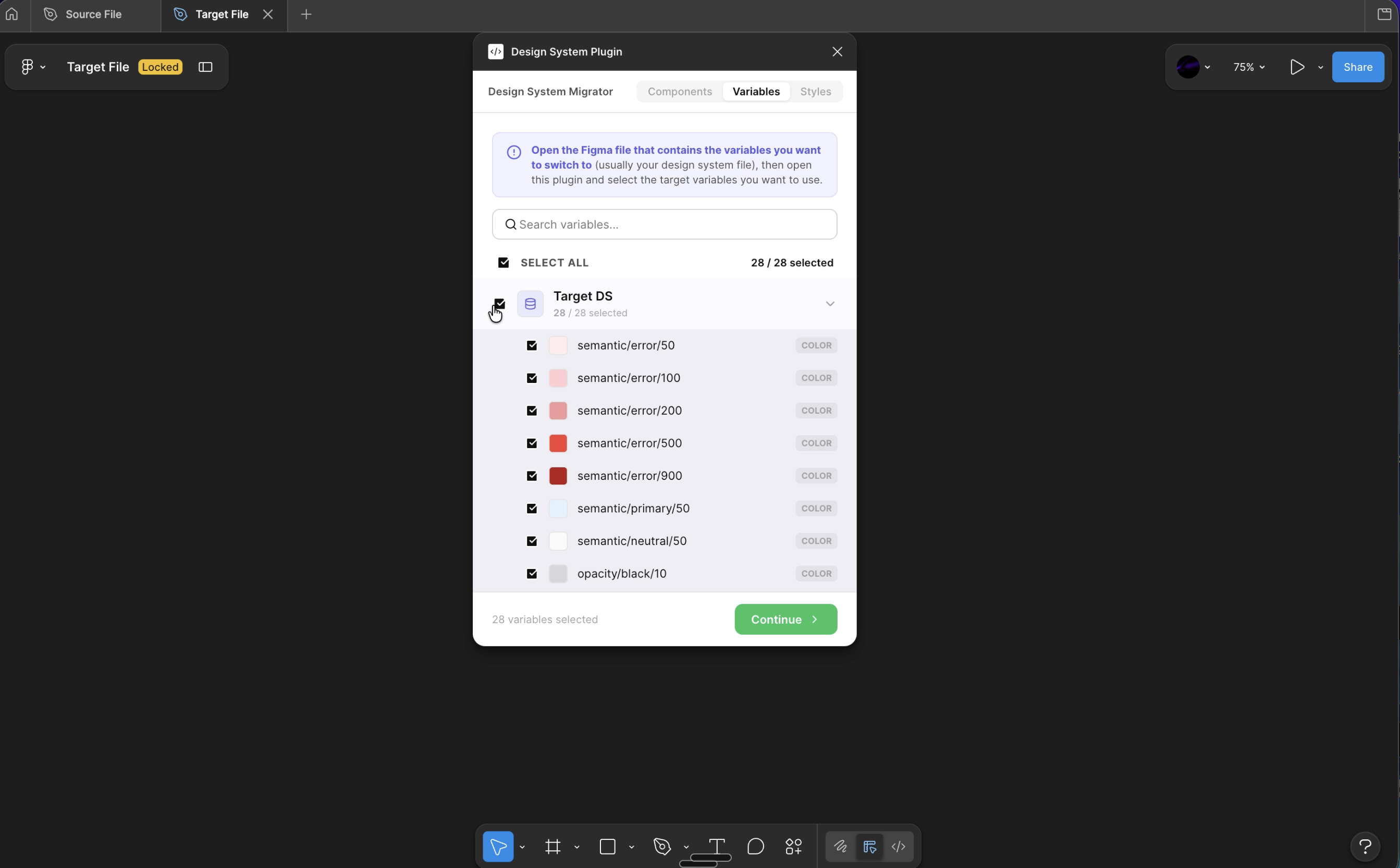
Register Your Source Variable Collections
Select the variable collections from the panel that you want to migrate. Click "Use Selection" to register them as your migration source. The plugin will log your selected collections and prepare the bridge for the target file.
You can select and register entire collections at once — there is no need to map variables one by one.
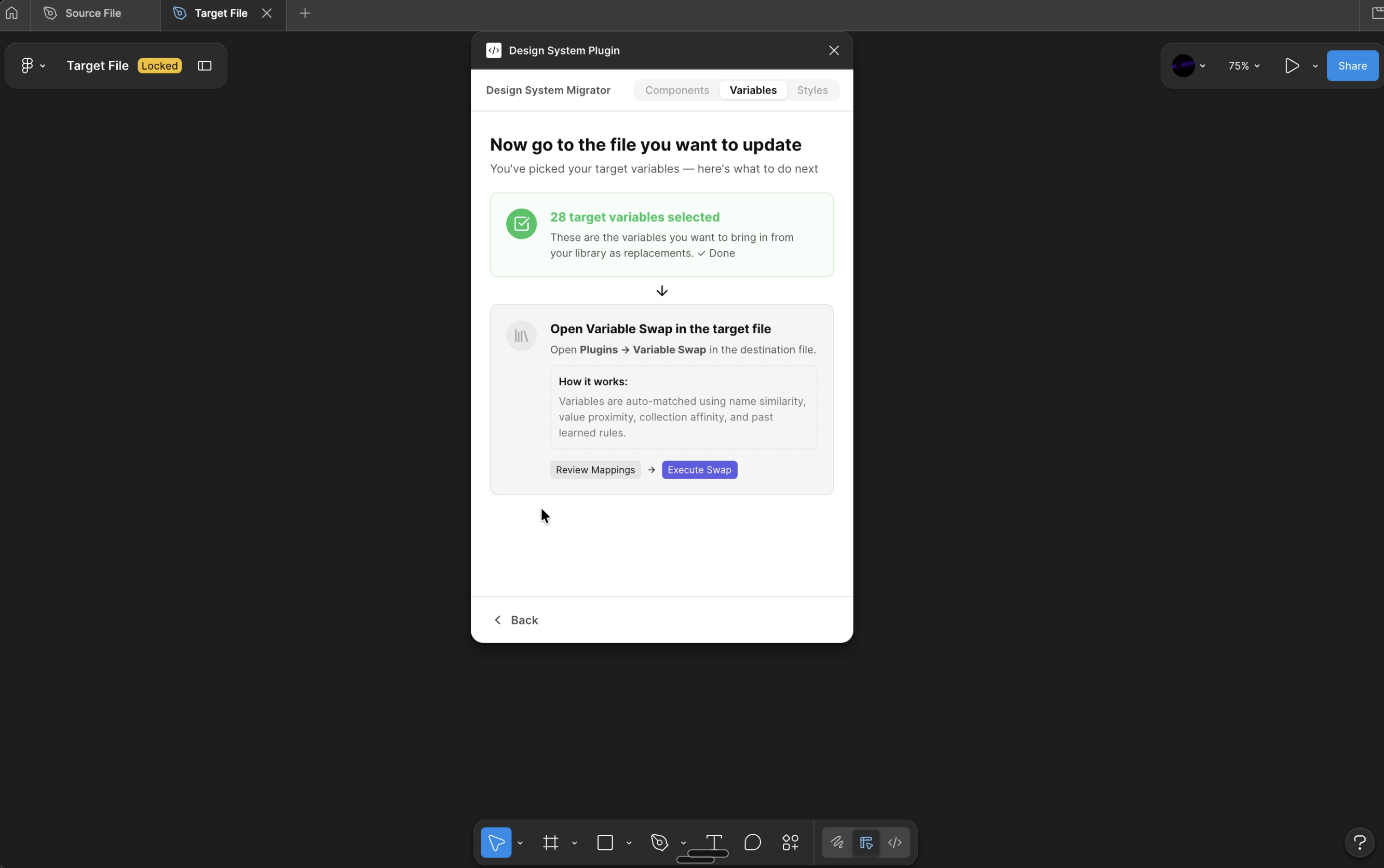
Switch to the Target Design File
Without closing the plugin, switch to the Figma file or tab where you want to apply the new variable tokens. The plugin detects the file change automatically and bridges your registered source collections into the new environment.
No need to restart the plugin. It persists your source selection across file switches for a seamless cross-file workflow.
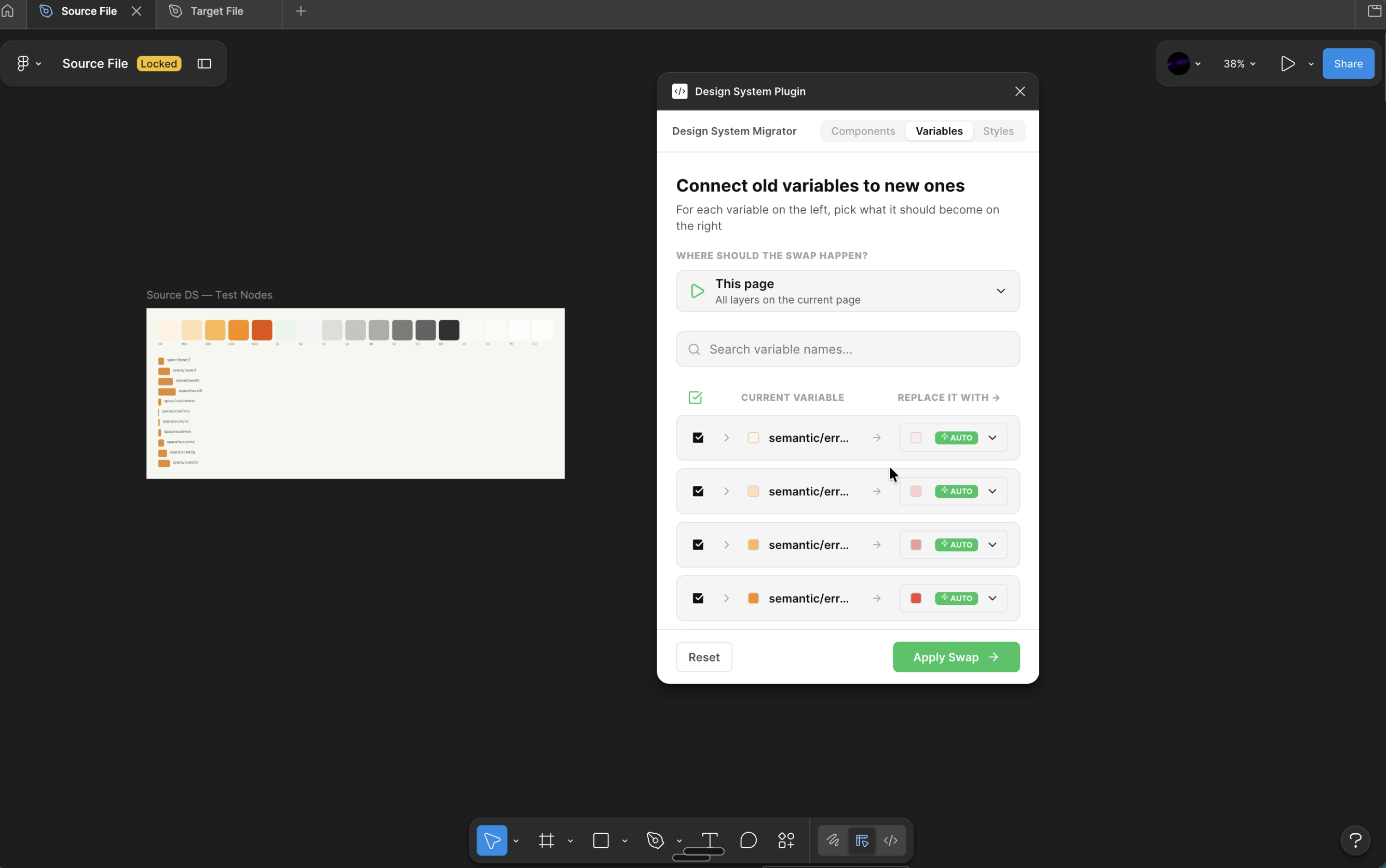
Review the Auto-Mapped Variable Pairs
The plugin intelligently analyzes variable names, values, and collection affinity to automatically map source variables to their matching counterparts in the target file. Review the proposed mappings in the panel before executing.
Confirm the mappings visually before executing. If any mapping looks incorrect, you can adjust it before committing the swap.
Set Scope & Execute the Global Variable Swap
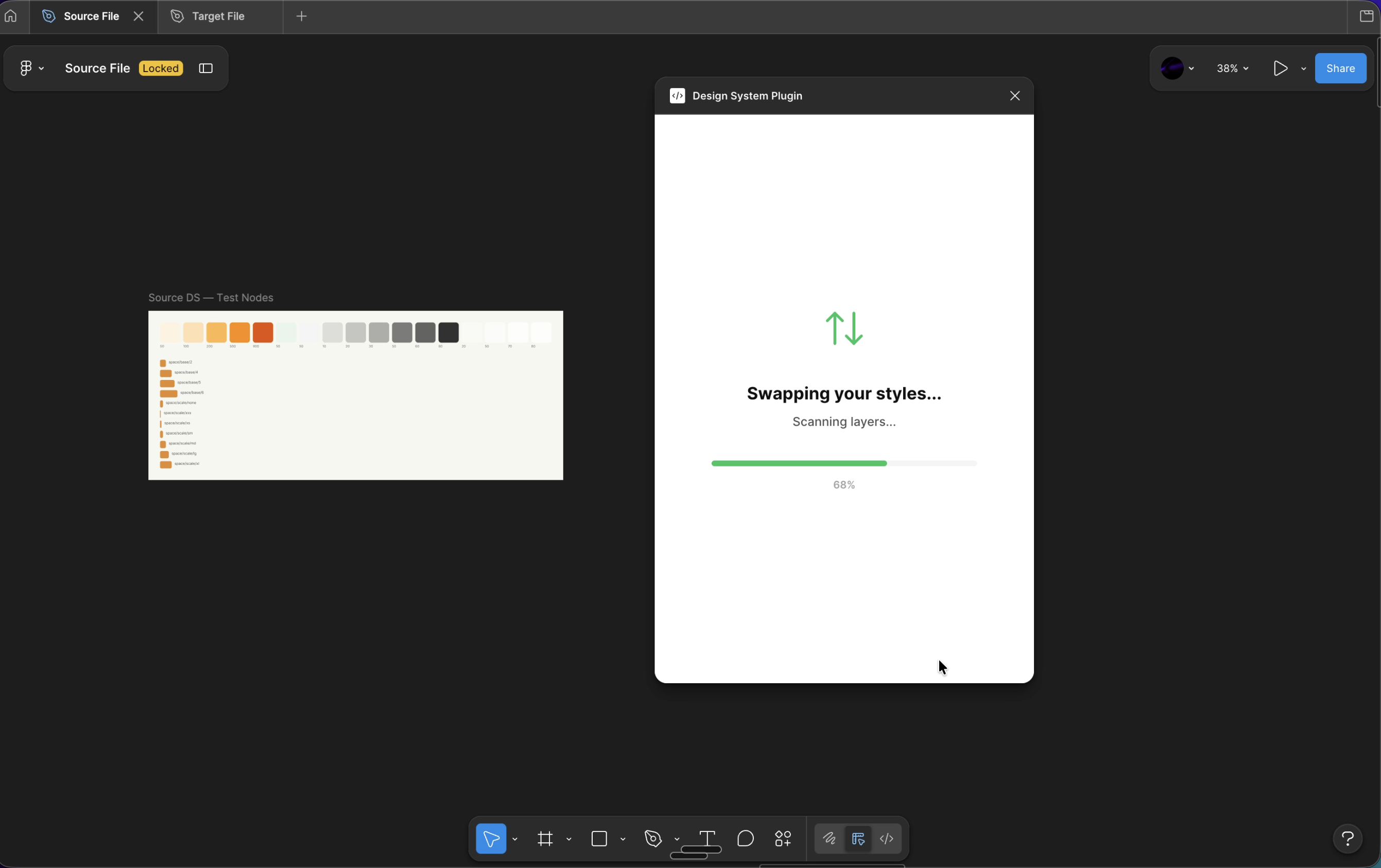
Choose your replacement scope — Selection (currently highlighted layers), Page (the active page only), or Document (every page in the file). Click "Swap Variables" and the plugin replaces every matching variable reference in real-time.
Use "Document" scope for a complete design system token overhaul. The plugin handles hundreds of layers in seconds.
Migration Complete — All References Updated
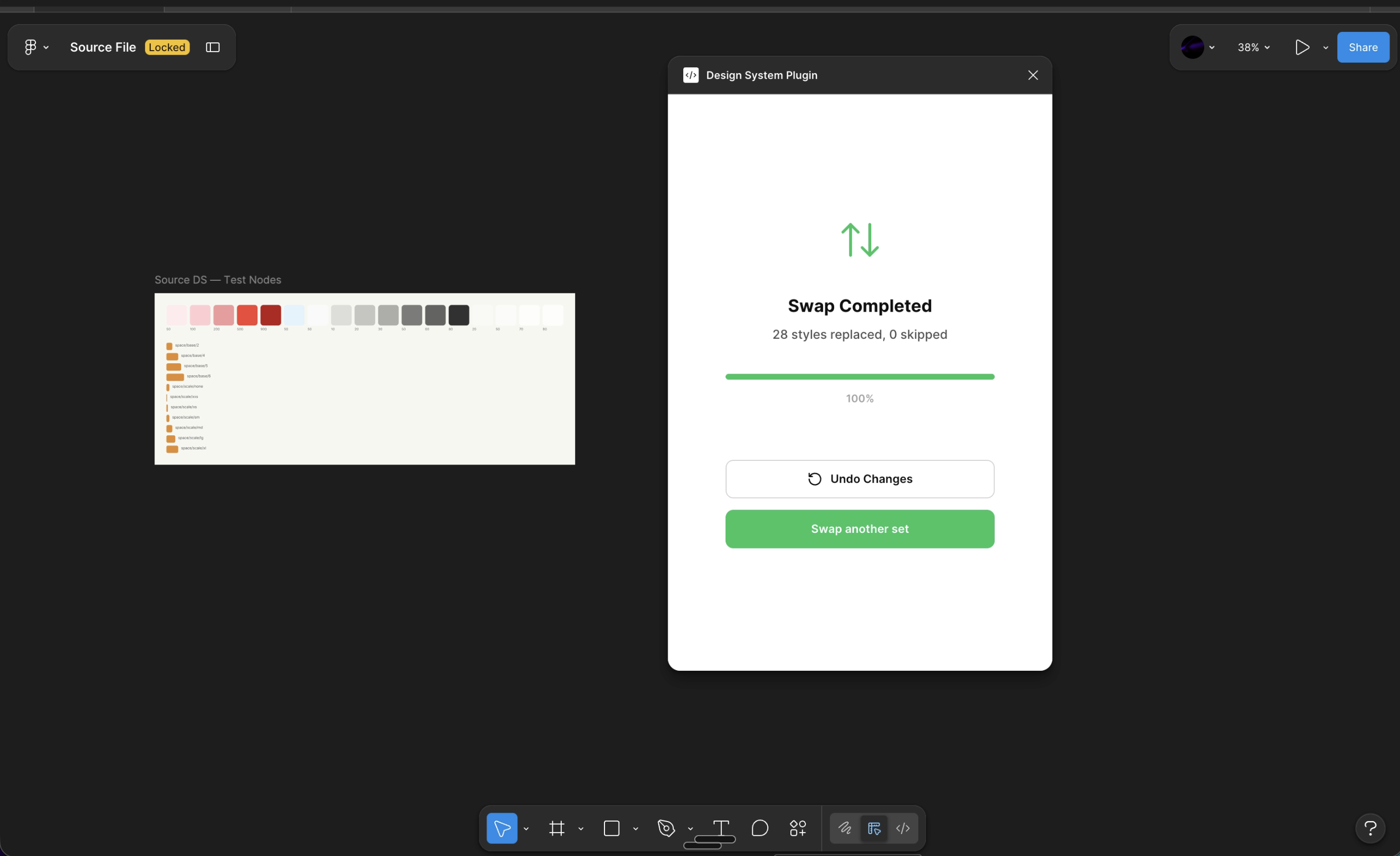
The plugin confirms the total number of variable references successfully replaced and displays the final count on the completion screen. Every layer that previously pointed to the old variable now points to the new one.
Every change is grouped into a single undo step. Hit Cmd+Z (Mac) or Ctrl+Z (Windows) to revert the entire operation instantly if needed.
Pro Tips for Variable Migrations
Duplicate your file before a full migration
For large token migrations, always duplicate the Figma file first. This gives you a rollback point in case the mapping produces any unexpected results.
Use "Selection" scope to test before going document-wide
Select a few representative frames and run the swap with "Selection" scope. Verify the output looks correct, then re-run with "Document" scope for the full pass.
Ensure consistent naming before registering source collections
The auto-mapper works on variable names. If your source and target libraries use different naming conventions, reconcile them first to get the most accurate automatic mapping.
Migrate one collection at a time on very large files
For files with thousands of variable-bound layers, processing one collection at a time makes it easier to review changes and keep undo steps clean and reversible.
Frequently Asked Questions
Can I swap variables between two completely different Figma files?
Yes — cross-file variable migration is the primary use case for this workflow. The plugin bridges the source file's variable definitions to the target file automatically when you switch tabs, with no copy-pasting or manual setup required.
Does the plugin support mapping between different collection names?
Yes. The plugin maps variables based on name matching and value similarity, not by collection name. You can migrate between collections even if they have been restructured or renamed during a design system refactor.
What happens if a source variable has no matching counterpart in the target file?
Unmatched variables are flagged in the mapping panel so you can review them before executing. The plugin will skip layers that reference unmatched variables instead of applying an incorrect replacement.
Will this work for all variable types — color, number, string, boolean?
The plugin supports all Figma variable types including color, number, string, and boolean. All types are included in the migration bridge and replacement pass.
Can I undo after the swap is complete?
Yes. All changes made in a single swap operation are grouped into one undo step in Figma's history. Pressing Cmd+Z (Mac) or Ctrl+Z (Windows) immediately after the swap will revert every replaced reference at once.
Is this different from Figma's built-in "Swap library" option?
Figma's built-in library swap works at the component and style level but does not give you granular, collection-level control over variable migration. The Design System Migrator gives you explicit mapping and scope control so you know exactly what gets replaced and where.
Summary
Figma doesn't ship with a native bulk variable replacement feature — but the Design System Migrator plugin fills that gap completely. Register your source collections, switch to the target file, review the auto-mapped pairs, and execute. Every variable reference across your chosen scope is replaced in seconds.
Whether you're rebranding, consolidating two systems, updating a token naming convention, or migrating to a fully semantic variable architecture — this workflow turns what was a multi-hour manual process into under a minute of work.
If you also need to migrate color, text, or effect styles, or bulk-replace component instances across your files, the same plugin handles all of that too — see the related guides below.
Get the Plugin
Variable Swap, Style Swap, Component Migration — all in one plugin.
Component Swap Guide
Learn how to replace all instances of a component across your entire Figma file in one click.